

Settings
Check your agent's connection, change Spotnote's colors, and choose where files open.
MCP
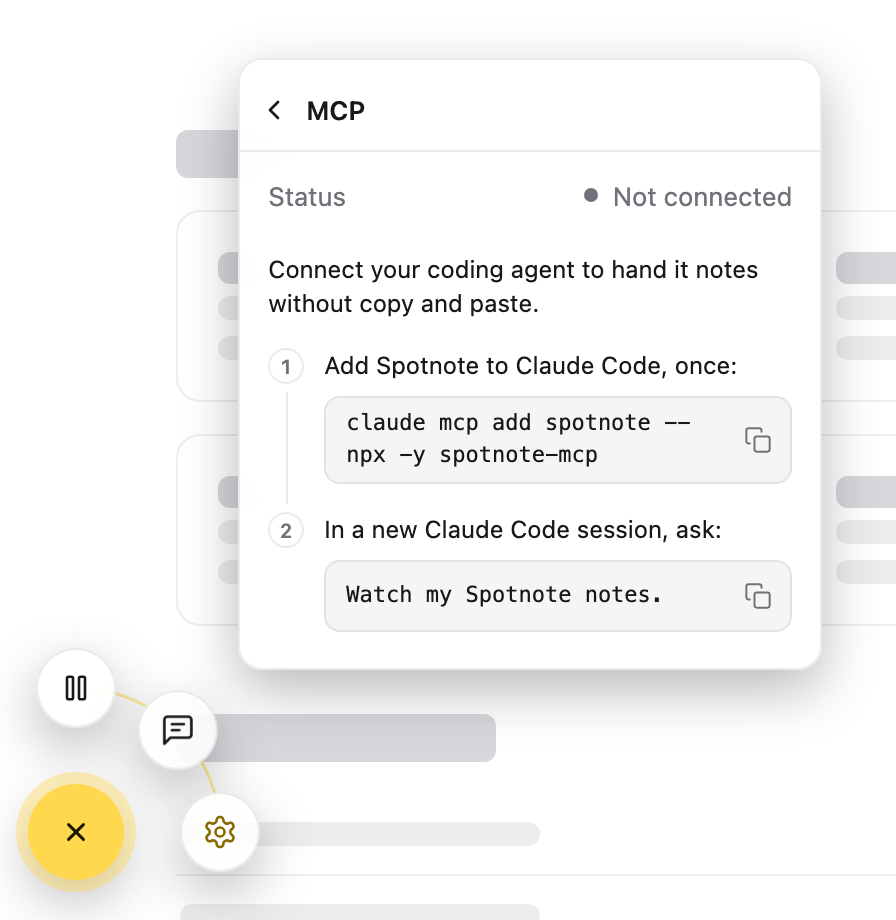
Shows whether your agent is connected through spotnote-mcp, updated live.
| Status | Meaning |
|---|---|
| Connected | Your agent picks up notes as you write them. |
| Connecting… | It just started. Your notes are syncing. |
| Not connected | No agent is running spotnote-mcp. |
Click the row for its page. When you're not connected, it shows the two steps to connect Claude Code, each with a copy button.
Accent color
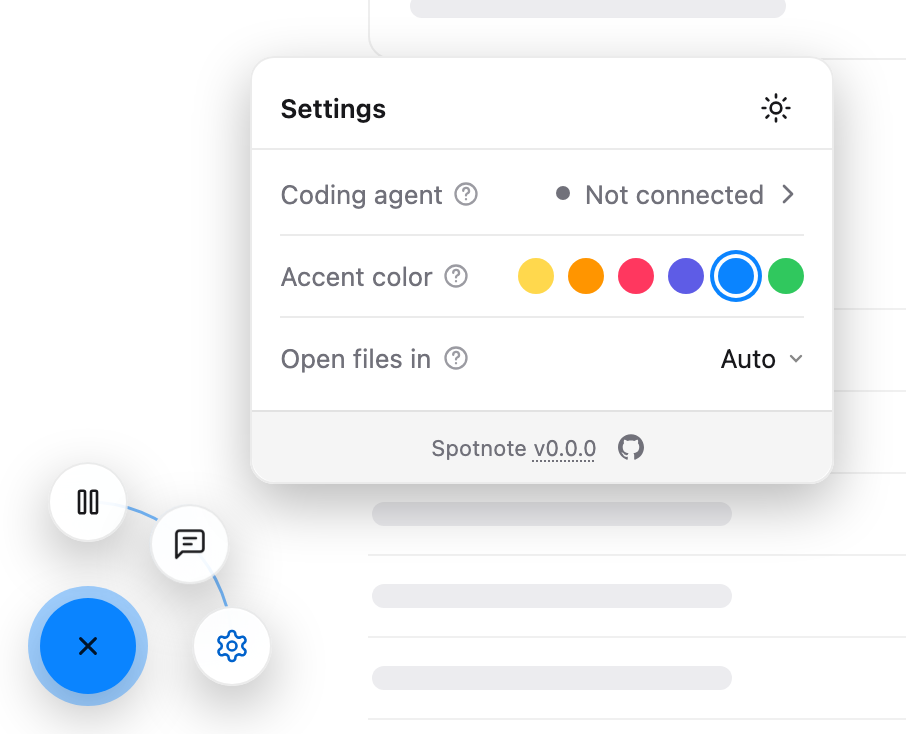
The color of the outline, labels and pins. Yellow is the default. Switch to orange, pink, violet, blue or green when yellow blends into your app.
Theme
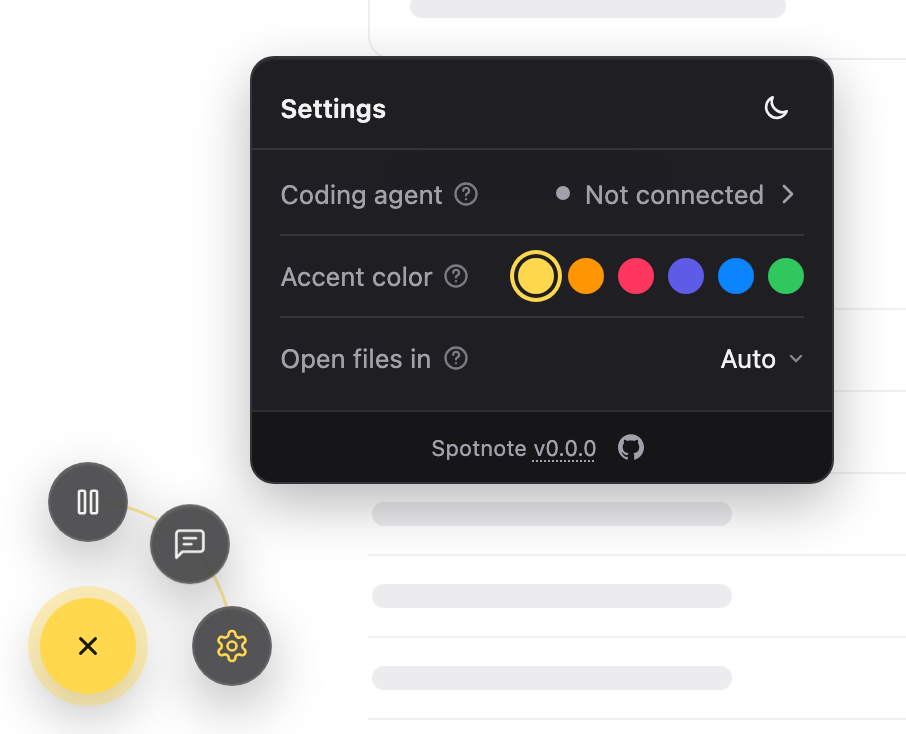
The icon at the top right of Settings. Click it to cycle: System (follows your OS), Light (the default), Dark.
Open files in
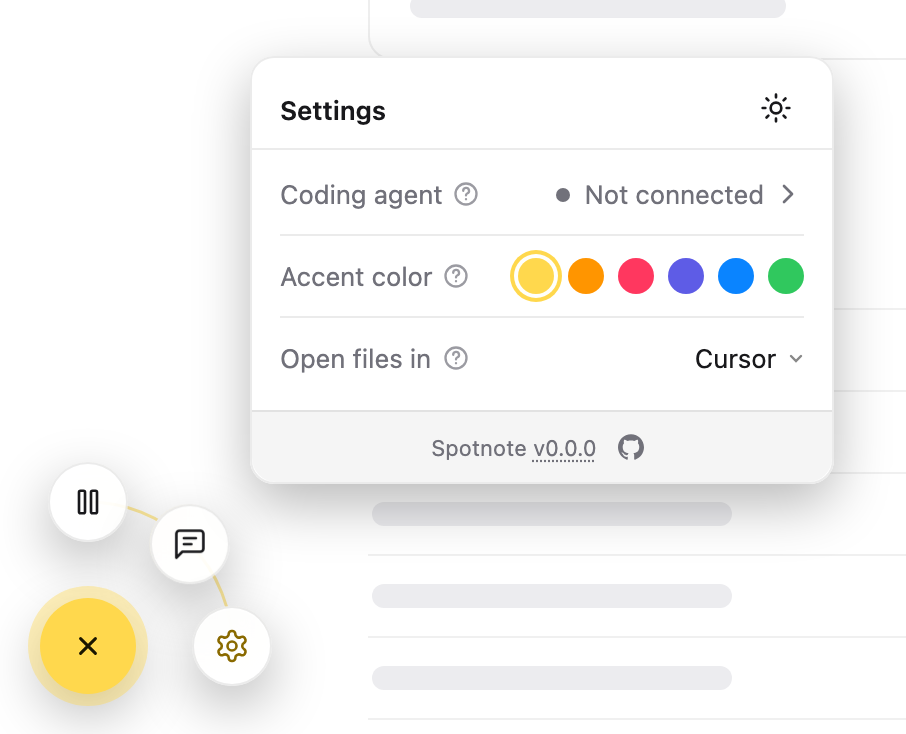
Where a file opens when you click its name, in the note panel's header or in the agent's messages (router.jsx:28).
| Option | Effect |
|---|---|
| Auto (default) | Opens in the editor that's running. If that editor's command-line tool isn't installed (VS Code's code, for example), opens through the editor's URL instead. |
| VS Code, Cursor, Windsurf, Zed | Always opens in that editor through its URL (vscode://file/…). Works without the editor running or its command-line tool installed. The browser may ask permission the first time. |
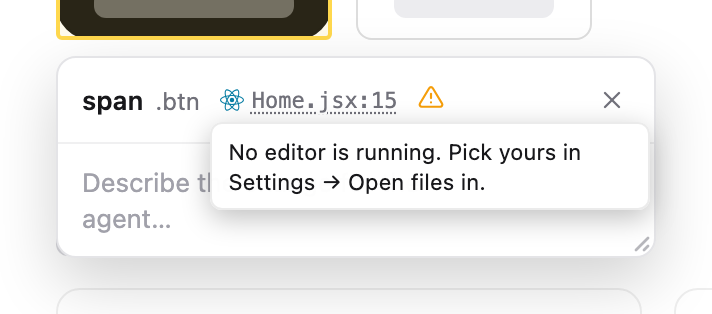
If Auto finds no editor, a warning icon appears next to the link. Hover it for why, then pick your editor here. To name an editor Auto doesn't recognise, set LAUNCH_EDITOR when starting your dev server.
Next
Connect your agent: turn Not connected into Connected.