

Guides
Notes
Write, edit, delete and find your notes.
Write a note
- In selection mode, click an element. The note panel opens.
- Type your request.
Shift+Enteradds a line break. - Press
Enter, or click ↵Add & copy.
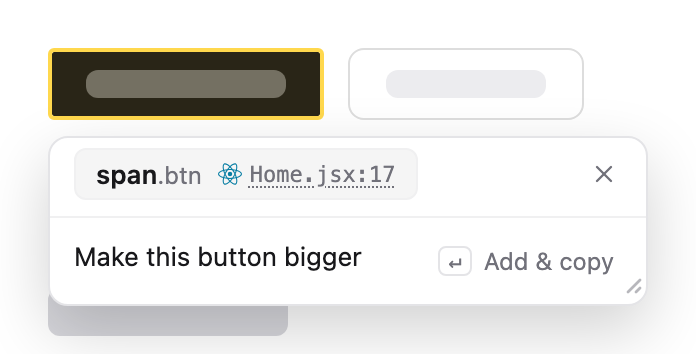
The note is saved, its pin appears, and the prompt is on your clipboard.
Edit a note
Click its pin, or click its element in selection mode. The panel opens with the note filled in.
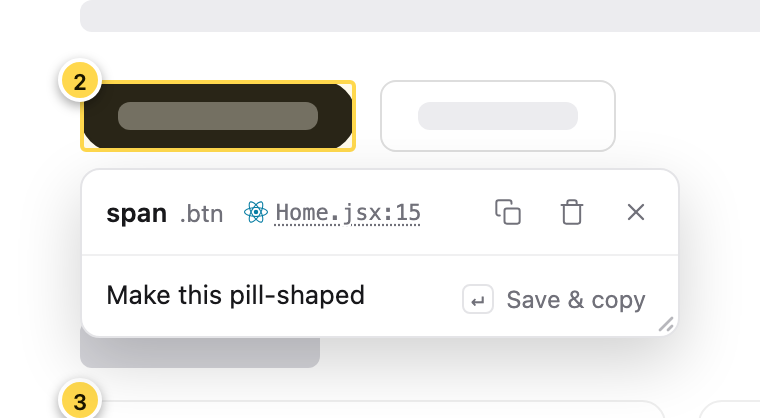
- Changes save when the panel closes, however you close it.
Enter(or ↵Save & copy) saves and copies the updated prompt.- at the top copies without closing the panel.
Clicking away with unsaved changes makes the panel shake.
Delete notes
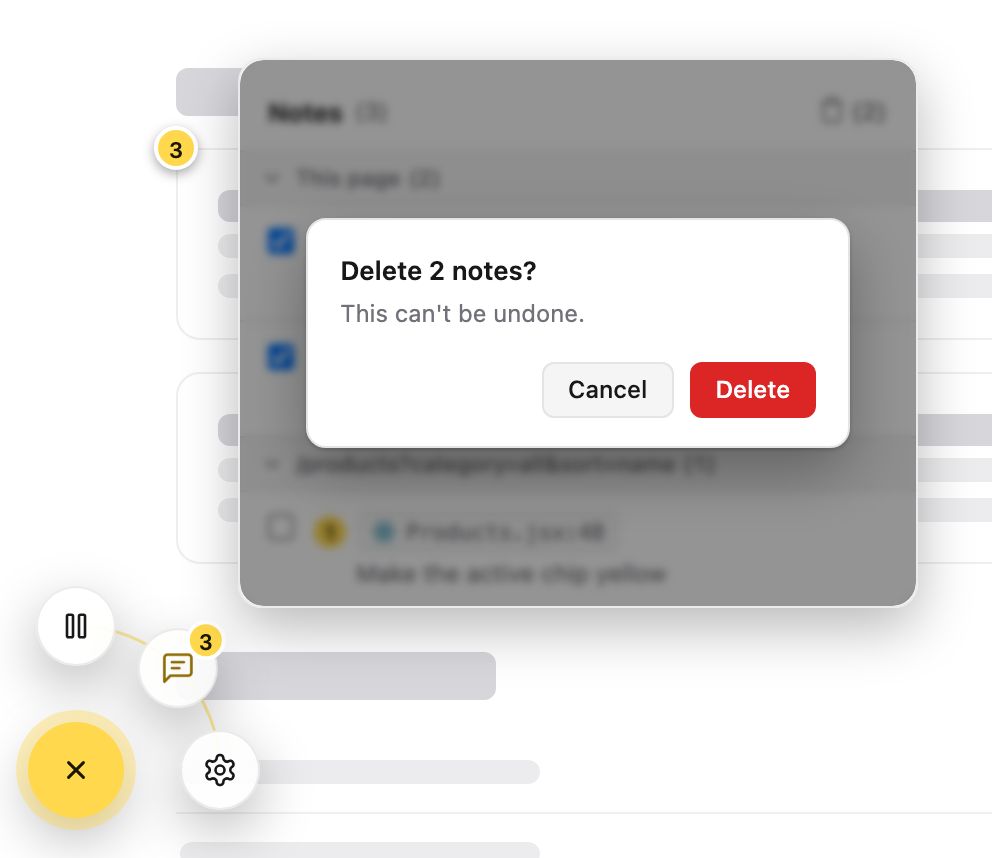
One note: open it, click , then Delete (or Cancel). The remaining pins are renumbered.
Several notes: open the notes list, then:
- tick the ones to delete and click (2) at the top (it shows how many), or
- with none ticked, click to delete every note.
Spotnote asks first (Delete all 3 notes?). Click Delete or Cancel.
The notes list
Open the launcher and click . Click a note to scroll to its element and open it. If it's on another page of your app, Spotnote goes there first.
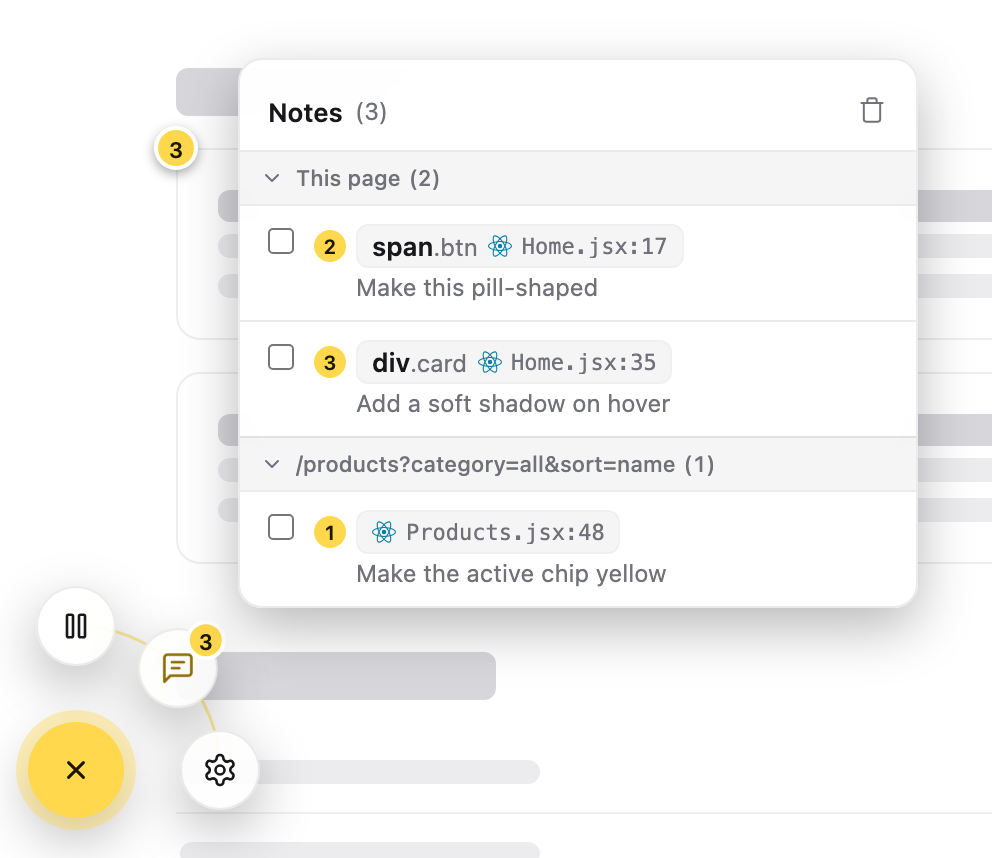
- This page's notes come first, under This page. Other pages follow, under their paths.
- Numbers match the pins.
- Click a heading to fold that section (it shows how many notes it holds). Click again to unfold.
Note status
With your agent connected, each pin shows where its note stands:
| Pin | Meaning |
|---|---|
| 1 | Waiting for an agent. |
| The agent is working on it. | |
| The agent asked you something. Answer in the panel. | |
| Done. The note shows what changed. | |
| The agent won't make the change. The note shows why. |
Next
Settings: check your agent's connection, change colors, and choose where files open.