

Guides
Picking Elements
Two ways to start picking, several elements at once, and how to back out.
Start picking
Pick whichever fits what you're doing:
| Way | How | Stays on |
|---|---|---|
| Launcher | Click in a corner. | Until you pause it or close the launcher. |
Alt key | Hold Alt (⌥ Option on a Mac). | Only while you hold the key. Good for a quick pick while you use your app. |
Either way, selection mode starts: an outline follows your cursor, and clicking an element opens its note panel instead of reaching your app.
Pick several elements
For a request about more than one element, such as "make these two buttons match":
- Click the first element. The note panel opens.
Shift+click each other element. Each gets an outline, and a chip in the panel's header:h3.title Home.jsx:36.- To take one off (even the first, as long as one is left),
Shift+click it again or press its chip's ×.
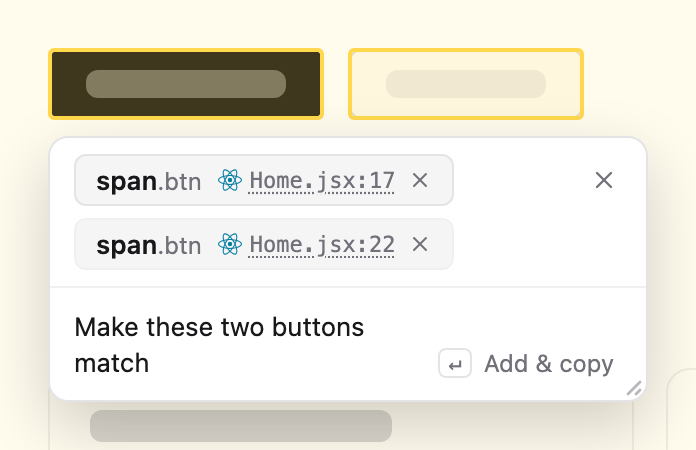
Hover a chip to light up its element on the page.
Back out with Esc
Each press closes one thing, front first:
- the note panel, the notes list or Settings (whichever you used last)
- the other one, if it's open
- selection mode (the launcher stays open, paused)
When panels overlap, click the one behind to bring it to the front.
Next
Notes: edit, delete and find your notes.